Stock Journal, Delivery Note, Receipt Note and orders: inventory vouchers explained
Accounting vouchers move money between ledgers. Inventory vouchers move goods: between godowns, out to customers before an invoice, in from suppliers before their bill arrives, or back after a stock count. TallyBook includes the same inventory vouchers as TallyPrime, on the same keys.
Before you start
- Press F11 and set Maintain inventory to Yes. Without it, the keys below show “Enable inventory in F11 (Features) to use this voucher”.
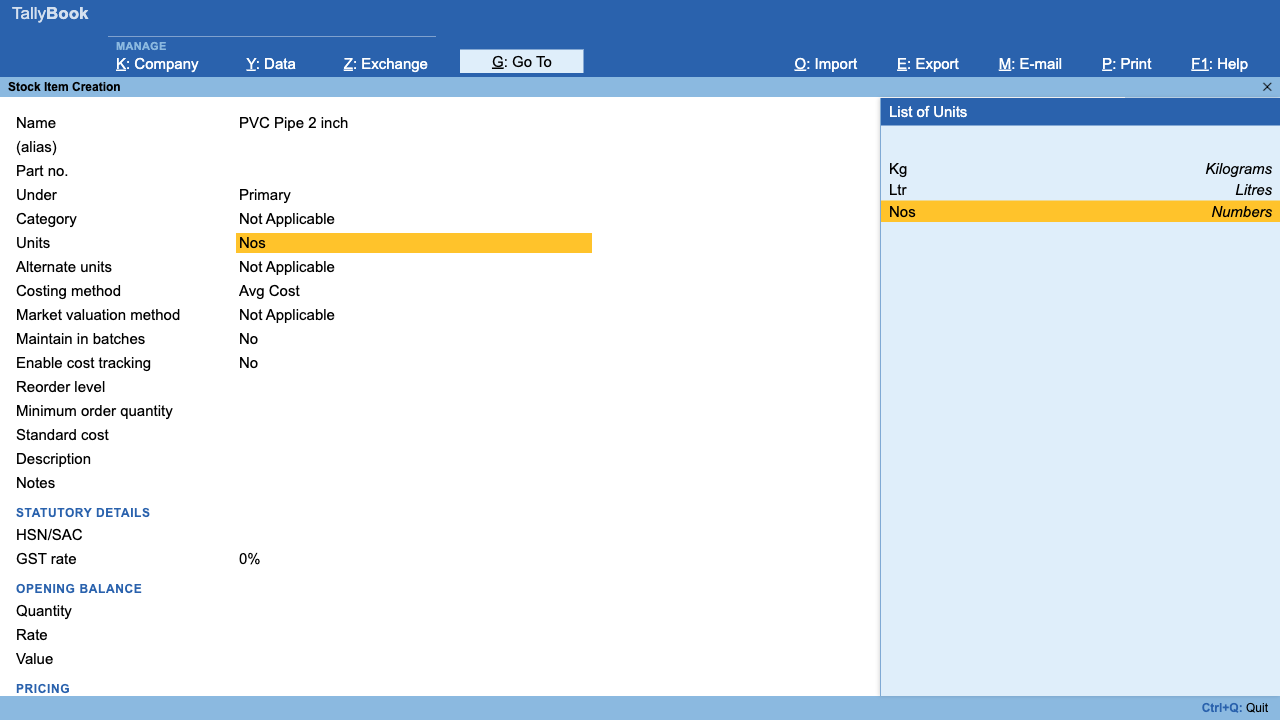
- Create stock items (Gateway › Create › Stock Item), and godowns if you keep goods in more than one place. With a single godown, TallyBook does not ask for one.
The inventory vouchers and their keys
| Key | Voucher | Effect on stock | Party needed? |
|---|---|---|---|
| Alt+F7 | Stock Journal | Out on some lines, In on others | No |
| Ctrl+F7 | Physical Stock | Sets the quantity to what you counted | No |
| Alt+F8 | Delivery Note | Out (goods sent to a customer) | Yes |
| Alt+F9 | Receipt Note | In (goods received from a supplier) | Yes |
| Ctrl+F6 | Rejection In | In (customer returns rejected goods) | Yes |
| Ctrl+F5 | Rejection Out | Out (you return goods to a supplier) | Yes |
| Ctrl+F8 | Sales Order | None: records a customer's order | Yes |
| Ctrl+F9 | Purchase Order | None: records your order to a supplier | Yes |
None of these vouchers posts a ledger entry. If you try to add ledger lines, TallyBook refuses with a message such as “Delivery Note vouchers do not post ledger entries”. Each line has an item, a godown (when you have more than one), a quantity and a rate.
Stock Journal (Alt+F7)
Use it when goods change place or form without a sale or purchase. Every line has a Source / Dest. column: Out for goods leaving, In for goods arriving.
- Godown transfer: 20 cartons of tea Out from “Shop”, 20 cartons In to “Warehouse”.
- Repacking or conversion: 50 kg loose sugar Out, 50 packets of 1 kg In.
Transfers appear in Inventory Books › Godown Transfers and Stock Transfer Analysis. For true manufacturing, where components are consumed to make a finished item, use a bill of materials and the Manufacturing Journal instead (Stock Journal also has Ctrl+H Change Mode); see manufacturing with a bill of materials.
Physical Stock (Ctrl+F7)
After counting the shelves, enter each item's actual quantity, not the difference. If the books say 120 and you counted 114, enter 114; TallyBook adjusts the balance from that date. Physical Stock entries are left out of movement analysis so they do not look like sales or purchases.
Delivery Note (Alt+F8) and Receipt Note (Alt+F9)
A Delivery Note records goods sent to a customer before you raise the invoice, for example goods sent on approval. A Receipt Note records goods received from a supplier before their bill arrives. Both need a party (a Sundry Debtor, Sundry Creditor or Cash) and immediately change stock.
Rejection In (Ctrl+F6) and Rejection Out (Ctrl+F5)
Use these for goods rejected on quality grounds that come back from a customer (In) or go back to a supplier (Out) before any Credit Note or Debit Note. The same caution applies: a Credit Note or Debit Note with items also moves stock.
Sales Order (Ctrl+F8) and Purchase Order (Ctrl+F9)
Orders record a promise, not a movement. TallyBook leaves them out of every stock balance and valuation. Track them in Gateway › Display More Reports › Inventory Books › Orders and Bills:
- Sales Orders (Due Only) and Purchase Orders (Due Only)
- Sales Order Stock Group Outstandings, Sales Order Ledger Outstandings and Purchase Order Ledger Outstandings
- Sales Bills Pending and Purchase Bills Pending
Checking the result
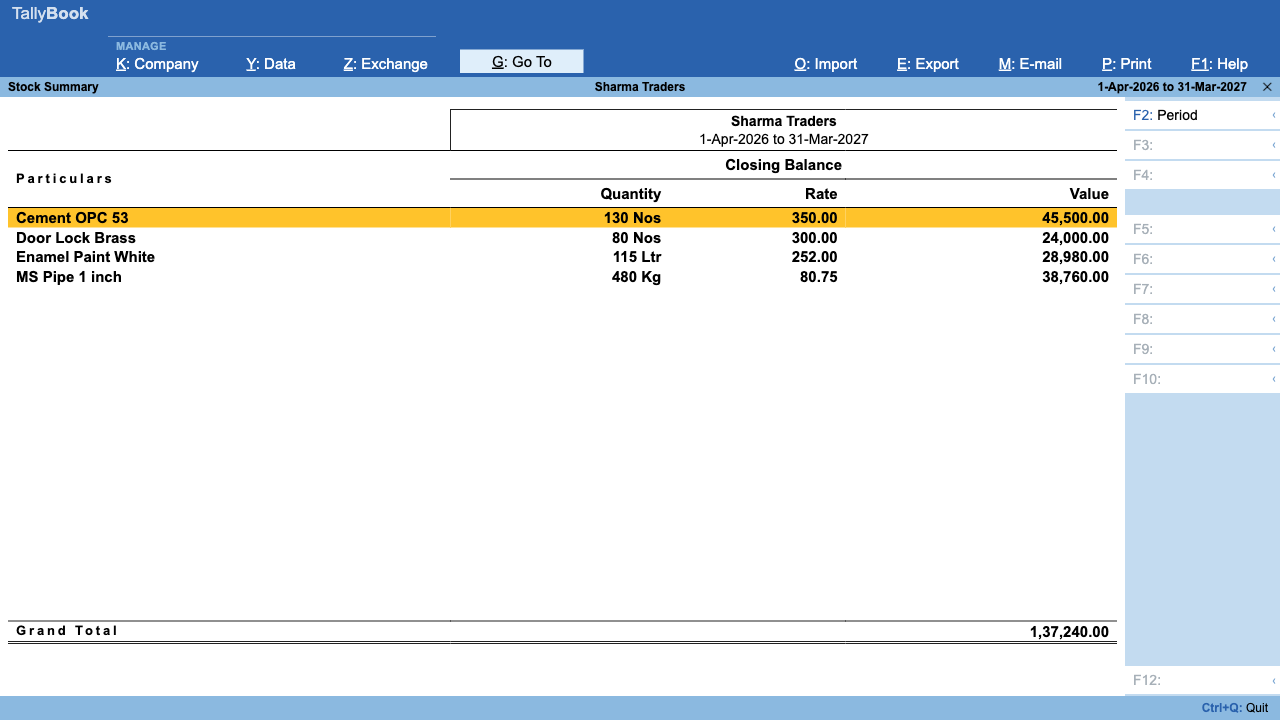
- Press S at the Gateway to open the Stock Summary. Quantities include every inventory voucher except orders.
- Press Enter on an item to see its movements.
- For godown-wise balances, open Display More Reports › Inventory Books › Godown Summary.
- Use Alt+F2 to see stock as on an earlier date.
How stock is valued is explained in FIFO, LIFO and average costing. For the money side of sales and purchases, see accounting voucher types and GST invoices.
Frequently asked questions
Do inventory vouchers affect my Profit & Loss?
Not directly. They post no ledger entries, so they do not touch any account. They change quantities, and through quantities the closing stock value that appears in the P&L and Balance Sheet.
Why does pressing Alt+F7 show an error?
Inventory vouchers need inventory turned on. Press F11 and set Maintain inventory to Yes. Until then TallyBook shows “Enable inventory in F11 (Features) to use this voucher”.
How do I move stock from my shop to my godown?
Use a Stock Journal. Add the item twice: once as Out from the shop, once as In to the godown, with the same quantity. The total stock is unchanged, but each godown's balance moves.
Will a Sales Order reduce my stock?
No. Orders are excluded from every stock balance. They appear in the order reports under Inventory Books › Orders and Bills until you deliver or invoice.
TallyBook is not affiliated with Tally Solutions Pvt. Ltd. TallyPrime is a trademark of its owner.