How to switch from Tally to TallyBook, step by step
Most people who try TallyBook already have years of data in Tally. You do not have to type any of it again. TallyBook reads the XML files that Tally exports, shows you exactly what it is about to create, and only then writes anything. This guide covers the XML route and the Excel/CSV route.
Before you start
- Install TallyBook. On first start it opens Company Creation. Use the same company name, state, Financial year beginning from and Books beginning from dates as in Tally, then press Ctrl+A.
- Press F11 and switch on what you use: bill-wise details, inventory, cost centres, payroll, TDS. The related menus only appear when a feature is on.
- Keep Tally installed until you have compared the figures. Nothing you do here touches your Tally company.
Step 1: Export your data from Tally
- Open the company in Tally and use its Export option (Alt+E in TallyPrime).
- Choose Masters, set the file format to XML (Data Interchange), select all masters and export.
- Export again, this time Transactions (all vouchers) for the full period, also in XML.
- Note the folder where Tally saved the two files. Menu wording differs a little between Tally versions; Tally's own help pages describe the export screen for your release.
Step 2: Import masters
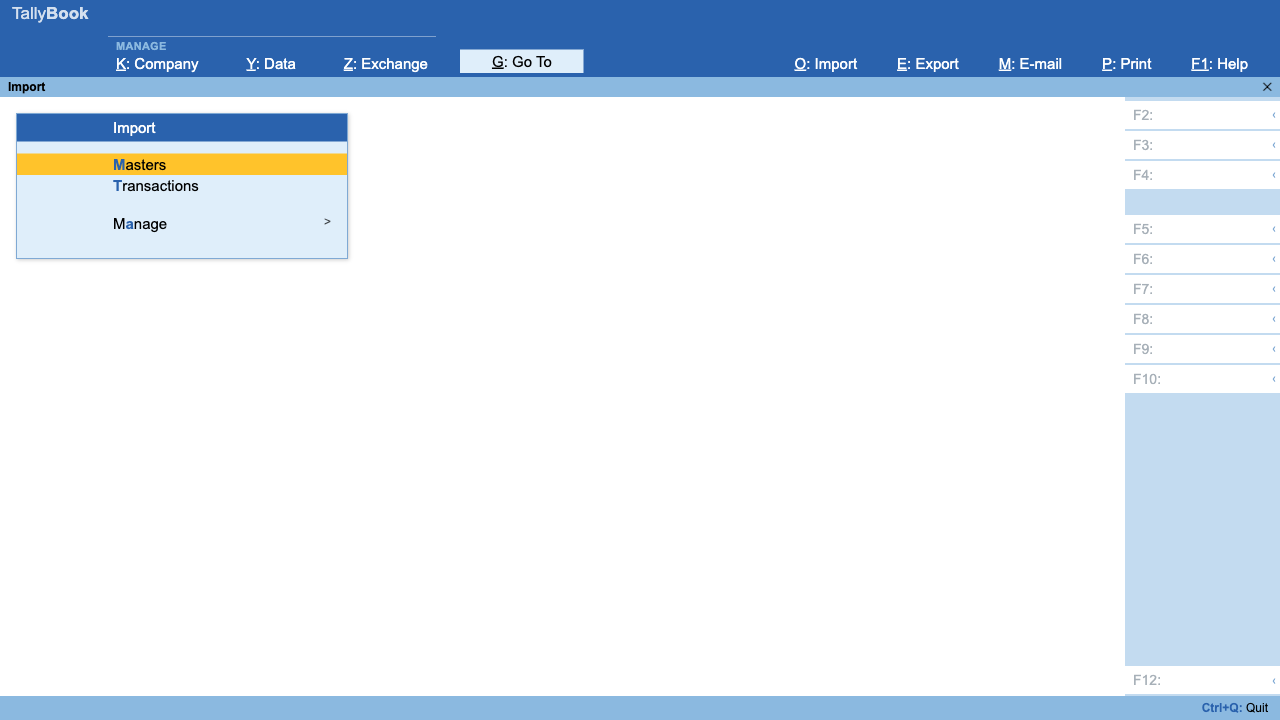
- From the Gateway, press Alt+O. The Import menu shows Masters, Transactions and Manage.
- Press M for Masters and pick the masters XML file. File Format is set to XML (Data Interchange) for you.
- Choose Behaviour of Import if master already exists: Ignore Duplicates (the default) or Modify with New Data.
- Leave Preview Import Summary and Backup Company Data before Import on. Press Ctrl+A; TallyBook asks where to save the backup.
- The Import Summary lists groups, ledgers, stock items, units, godowns, cost centres, voucher types and any exceptions. Nothing has changed yet. Press I to import or Esc to cancel.
Step 3: Import transactions
Press Alt+O, then T, and pick the vouchers XML. The summary shows the number of vouchers and stock lines. Press I. If there are exceptions, the next key press opens Import Exceptions, grouped into master-related and voucher-related problems, so you can fix them and import again.
Re-importing never duplicates
Every voucher Tally exports carries a unique ID. TallyBook remembers it, so a voucher that is already present is skipped. That makes a gradual move safe: keep entering in Tally for a few weeks, export again and import the same file or a newer one. Only new vouchers come in. One thing to know: a voucher you changed in Tally after the first import is also skipped, so correct those few by hand.
Step 4: Check the Trial Balance
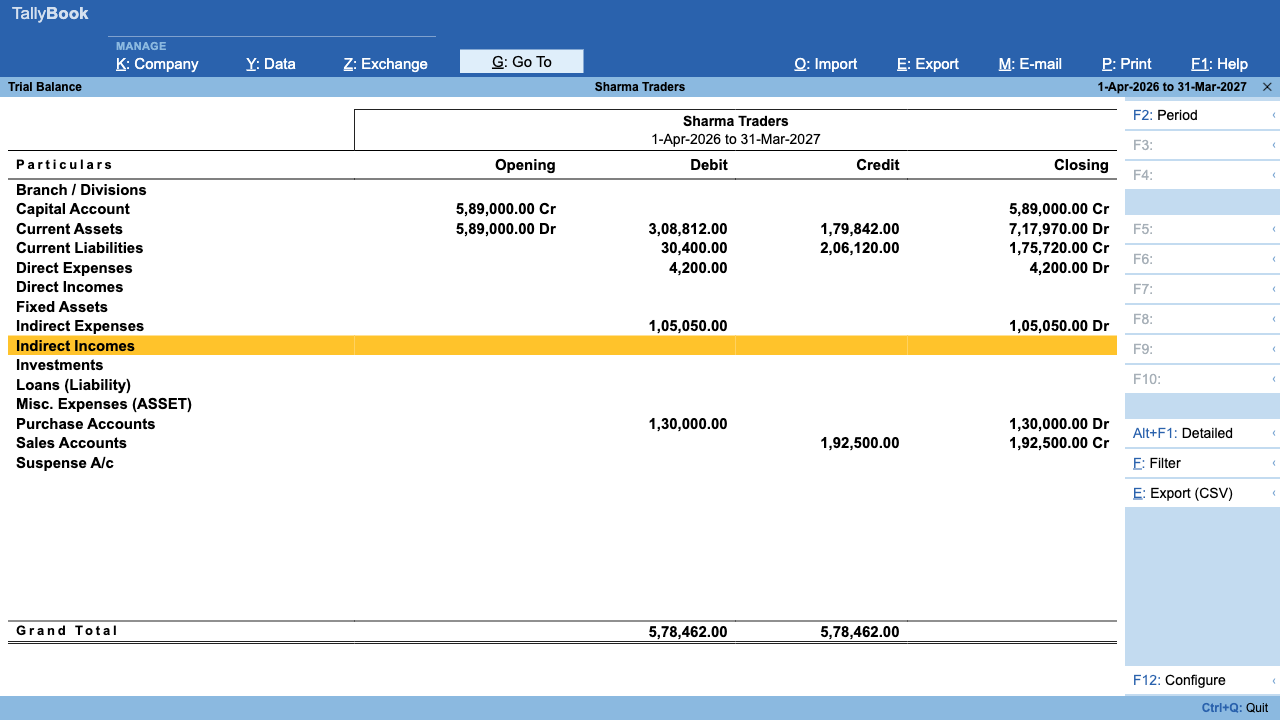
Open Trial Balance from Display More Reports (or Alt+G and type "Trial"). Press Alt+F2 to set the same period as in Tally and compare the closing totals. Then check the Balance Sheet, Profit & Loss and, if you keep stock, the Stock Summary. Press Enter on any line to drill down to ledgers and vouchers.
What comes across
| Data | XML import |
|---|---|
| Groups, ledgers, opening balances, bill-wise details | Yes |
| Voucher types and accounting vouchers | Yes |
| Stock items, units, godowns, item lines in vouchers | Yes |
| Cost centres and cost allocations | Yes (allocations that do not match are skipped with a warning) |
| Currencies | No, skipped with a warning |
| Payroll, TDS and other newer statutory masters | Not yet; set these up in TallyBook |
Using Excel or CSV instead
If your data is in spreadsheets, or you are starting fresh, use Excel (.xlsx) or CSV files.
- Press Alt+O → Manage → Sample Excel File → Masters or Transactions. Press C to choose All Accounting Masters, All Inventory Masters or Accounting Voucher, then E to save the sample.
- Fill in your rows. The columns use the same header names as Tally's sample Excel templates, and the Default Template matches columns by header name, so a sheet already prepared in that format usually works as it is.
- Import with Alt+O → Masters or Transactions. Pick the Worksheet Name and Type of Master (guessed from the sheet name). For masters you can also choose Combine Opening Balance.
- A voucher sheet needs at least Voucher Date, Voucher Type Name, Ledger Name, Ledger Amount and Ledger Amount Dr/Cr. Rows whose voucher number already exists are ignored.
Frequently asked questions
Will importing into TallyBook change my Tally data?
No. Tally only writes the export files; TallyBook only reads them. Your Tally company stays exactly as it was.
What happens if I import the same file twice?
Vouchers already present are recognised by their unique ID and skipped, so nothing is duplicated. Masters follow the behaviour you choose: Ignore Duplicates or Modify with New Data.
Does the import bring my stock items and item invoices?
Yes. Stock items, units and godowns come in with the masters file, and item lines come in with the vouchers file. Check the Stock Summary afterwards.
Can I move data back to Tally later?
TallyBook can export groups, ledgers, voucher types and the current period's vouchers in Tally's XML structure with Alt+E. Test that on a copy of a Tally company before you depend on it.
Can I import from Excel without having Tally?
Yes. Export a sample sheet from Alt+O → Manage → Sample Excel File, fill it in, and import it as masters or transactions.
Related: Keyboard shortcuts · Backup and restore
TallyBook is an independent product made by Techardent Labs and is not affiliated with, endorsed by or connected to Tally Solutions Pvt. Ltd. TallyPrime and Tally are trademarks of their owner. Tax rules change often; confirm current rates, limits and due dates on the official portals or with your Chartered Accountant.