How to create a GST invoice in TallyBook
A GST invoice needs four things to be right: who you are selling to, where the supply takes place, what you are selling and at what rate. TallyBook asks for them in that order and works out the tax heads for you. This guide covers the plain accounting invoice and the item invoice you get when inventory is switched on.
One-time setup
- Company GST. Press F11, set Enable Goods and Services Tax (GST) to Yes and type your 15-character GSTIN/UIN. TallyBook checks the format and check digit. Make sure your company's state is correct (Alt+K → Alter).
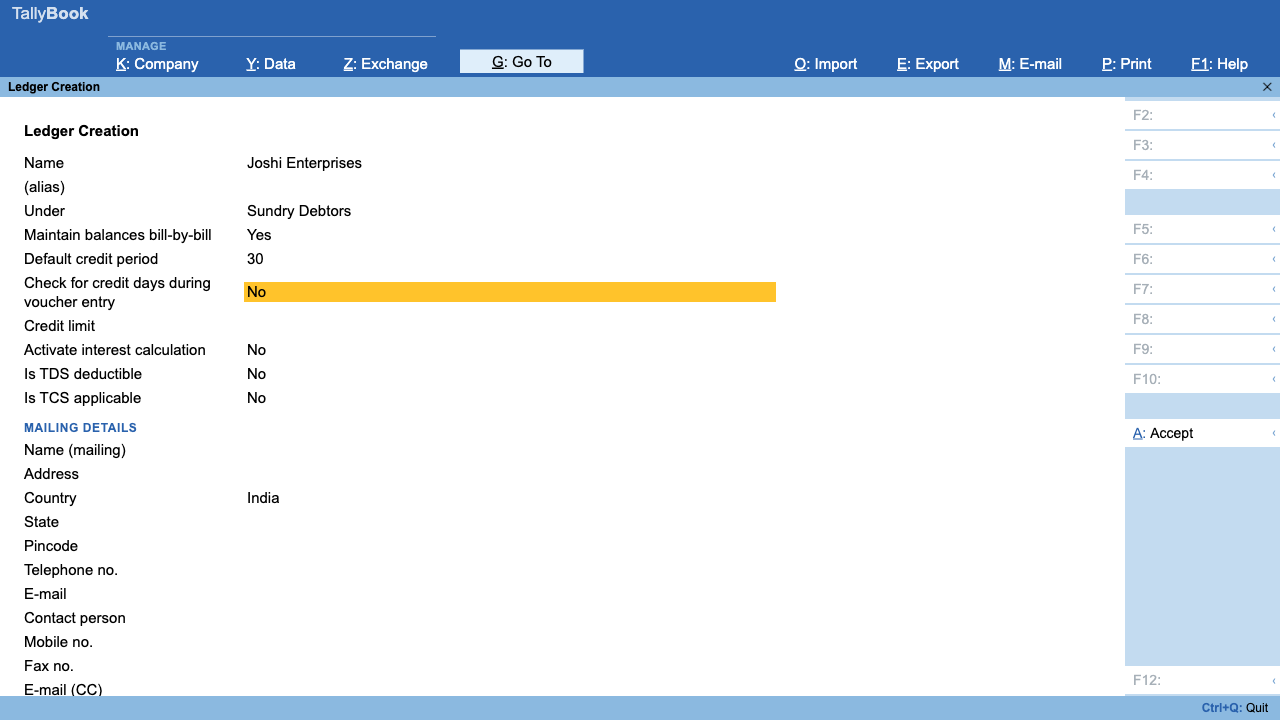
- Customer ledger. Gateway → Create → Ledger. Put it Under Sundry Debtors, fill the address, State and Pincode, choose a Registration type (Regular, Composition, Unregistered/Consumer, SEZ and others) and enter the GSTIN/UIN. TallyBook warns if the GSTIN's first two digits do not match the state.
- Sales ledger. Create a ledger under Sales Accounts. Set Percentage of calculation (the GST rate), Nature of supply (Goods or Services), HSN/SAC, Taxability and Nature of transaction.
You do not need to create CGST, SGST or IGST ledgers. When you save the first invoice at a rate, TallyBook creates ledgers such as "Output CGST 9%" under Duties & Taxes.
Raise the invoice
- Press F8. With GST on, the Sales voucher opens in invoice view. Check the date (F2 to change it).
- In Party A/c name, type a few letters and pick the customer. Alt+C creates a new ledger without leaving the voucher.
- Place of supply fills from the party's GSTIN or state. Change it if goods are delivered elsewhere; you can type a state name or code. A hint shows "Intra-state: CGST + SGST" or "Inter-state: IGST".
- On each line pick the Sales ledger. The Rate comes from the ledger and can be changed. Enter the Taxable value.
- Press Enter on an empty line to finish. The panel on the right shows the taxable value, each tax ledger and the invoice total.
- Type a narration and press Enter, then Yes to accept, or simply Ctrl+A. If the customer keeps bill-by-bill balances, TallyBook asks for the bill reference first.
Example: ₹10,000 taxable at an 18% rate
| Customer in your state | Customer in another state | |
|---|---|---|
| Taxable value | ₹10,000 | ₹10,000 |
| CGST | ₹900 (Output CGST 9%) | – |
| SGST | ₹900 (Output SGST 9%) | – |
| IGST | – | ₹1,800 (Output IGST 18%) |
| Invoice total | ₹11,800 | ₹11,800 |
The 18% rate is only an illustration. Use the rate notified for your goods or services; check it on gst.gov.in or with your CA.
Item invoices when you maintain stock
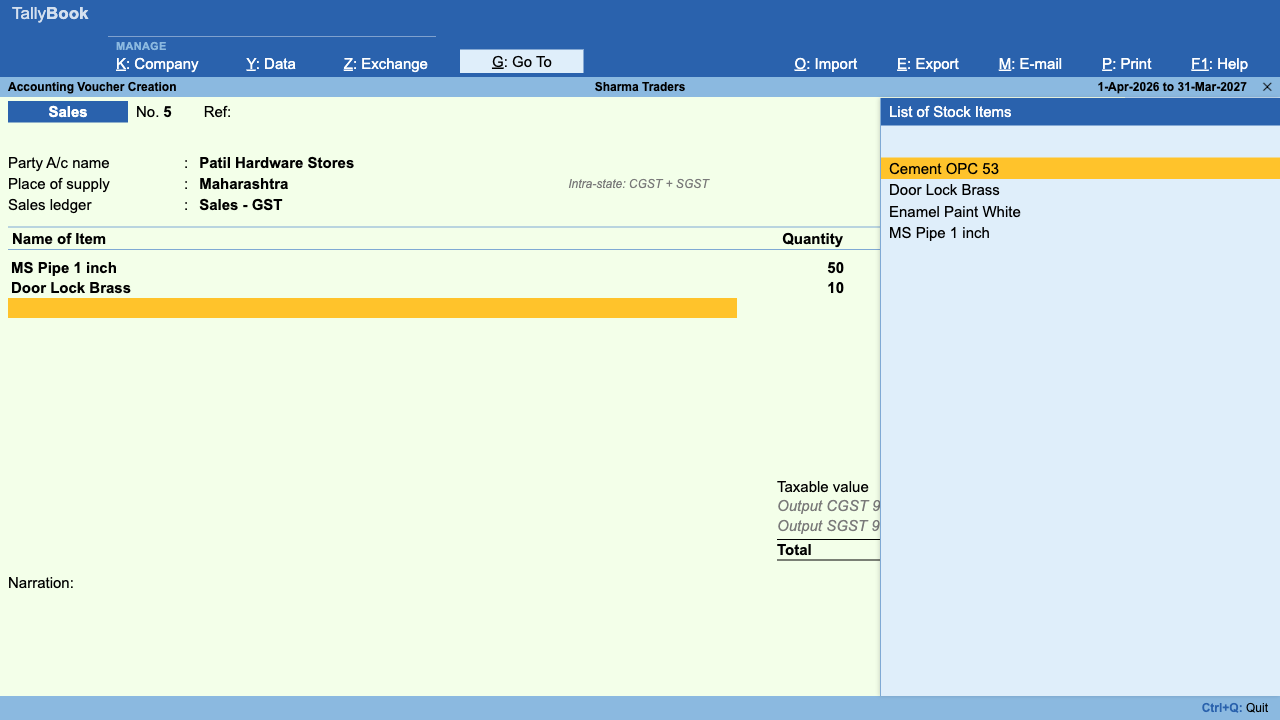
Switch on Maintain inventory in F11 and give each stock item its HSN/SAC and GST rate in Stock Item Creation. Now F8 opens an item invoice: Party, Place of supply and Sales ledger at the top, then Name of Item, Godown (when you have more than one), Quantity and Rate on each line. GST is worked out from each item's rate, and the HSN codes feed the HSN summary in GSTR-1. Ctrl+H (switch to voucher view) is only for accounting invoices.
Print or send it
After saving, open the invoice from the Day Book and press Ctrl+P to print, or Alt+P for printer settings, including Save as PDF. Ctrl+M e-mails it and Ctrl+Alt+W shares it on WhatsApp.
Frequently asked questions
Do I need to create CGST, SGST and IGST ledgers in TallyBook?
No. TallyBook creates the output and input tax ledgers for each rate the first time you save an invoice at that rate.
How does TallyBook decide between IGST and CGST plus SGST?
It compares the place of supply with your company's state (taken from your GSTIN or company state). Same state means CGST plus SGST; a different state means IGST.
Where do I enter the HSN or SAC code?
On the sales ledger for accounting invoices, or on each stock item when inventory is on. GSTR-1 flags supplies with no HSN/SAC.
Can I raise a GST invoice to an unregistered customer?
Yes. Set the ledger's Registration type to Unregistered/Consumer; the GSTIN field is then hidden. The invoice is counted in the B2C sections of GSTR-1.
Related: GSTR-1 and GSTR-3B · e-Invoice and e-Way Bill
TallyBook is an independent product made by Techardent Labs and is not affiliated with, endorsed by or connected to Tally Solutions Pvt. Ltd. TallyPrime and Tally are trademarks of their owner. Tax rules change often; confirm current rates, limits and due dates on the official portals or with your Chartered Accountant.