Voucher types explained: Contra, Payment, Receipt, Journal, Sales, Purchase, Credit and Debit Note
A voucher is the document you use to record a transaction. Each voucher type exists for a kind of transaction, and choosing the right one keeps your registers, GST reports and bank books correct. TallyBook has the same eight accounting voucher types as TallyPrime, opened with the same keys.
The eight accounting vouchers at a glance
| Key | Voucher | Use it when… | Typical entry |
|---|---|---|---|
| F4 | Contra | Money moves between cash and bank, or between two banks | Dr Bank, Cr Cash (cash deposited) |
| F5 | Payment | Money leaves the business by cash or bank | Dr Rent, Cr Bank |
| F6 | Receipt | Money comes into the business | Dr Bank, Cr Customer |
| F7 | Journal | Adjustments with no cash or bank involved | Dr Depreciation, Cr Furniture |
| F8 | Sales | You sell goods or services (cash or credit) | Dr Customer, Cr Sales, Cr GST |
| F9 | Purchase | You buy goods or services for the business | Dr Purchase, Dr GST, Cr Supplier |
| Alt+F6 | Credit Note | A customer returns goods or you reduce what they owe | Dr Sales, Dr GST, Cr Customer |
| Alt+F5 | Debit Note | You return goods to a supplier or reduce what you owe | Dr Supplier, Cr Purchase, Cr GST |
You can press any of these keys from almost anywhere in TallyBook. If you press one while a voucher is already open, TallyBook switches to the new type.
Each voucher, with an example
Contra (F4)
You deposit ₹50,000 of shop cash into the bank. Both ledgers are cash or bank, so this is a Contra. TallyBook enforces this: a Contra voucher accepts only cash and bank ledgers. Withdrawing cash for the till and transferring between two bank accounts are Contra entries too.
Payment (F5)
You pay ₹12,000 to a supplier by cheque. Choose the bank in Account, the supplier under Particulars, and type the amount. If the supplier is kept bill-by-bill, TallyBook asks which bill you are paying. For payments by cheque you can press Ctrl+T to mark the voucher as post-dated.
Receipt (F6)
A customer pays ₹30,000 into your bank. Choose the bank in Account and the customer under Particulars. Receipt also suits other money coming in, such as a loan received or interest credited by the bank.
Journal (F7)
At year end you charge ₹5,000 depreciation on furniture: Dr Depreciation, Cr Furniture. No cash or bank moves, so Journal is the right voucher. Provisions, write-offs and corrections between two ledgers also go here.
Sales (F8)
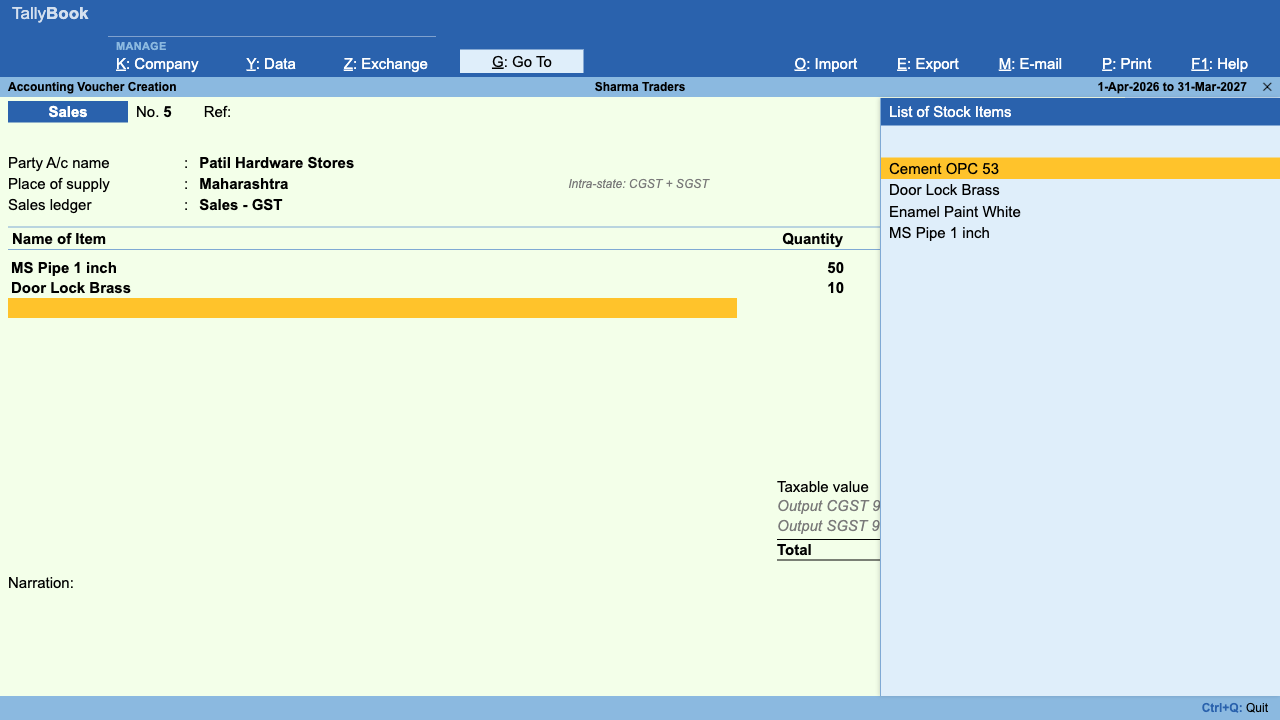
You sell goods worth ₹20,000 on credit to Ravi Enterprises. The Sales voucher debits the customer and credits Sales and, if GST is enabled, the output tax ledgers. With inventory on, you enter items, quantities and rates on the invoice. With GST on and inventory off, Ctrl+H switches between the invoice view and the plain voucher view while creating it. See the GST invoice guide for a full walk-through.
Purchase (F9)
You buy stock worth ₹40,000 from Sharma Traders on credit. Enter the supplier's bill number in the reference field so you can match it later. Purchases of fixed assets, such as a computer, can also be entered here with the asset ledger in place of Purchase.
Credit Note (Alt+F6) and Debit Note (Alt+F5)
Ravi Enterprises returns goods worth ₹2,000: issue a Credit Note, which reduces what they owe you. You return damaged goods worth ₹1,500 to Sharma Traders: record a Debit Note, which reduces what you owe them. With GST on, both reverse the tax as well.
Useful keys inside any voucher
| Key | What it does |
|---|---|
| F2 | Change the voucher date |
| Alt+C | Create a ledger from inside a list |
| Alt+R | Remove a line |
| Ctrl+A | Accept and save |
| Alt+D | Delete the voucher (when altering) |
| Alt+X | Cancel the voucher, keeping its number (when altering) |
| Alt+2 | Duplicate the voucher (when altering) |
Inventory and order vouchers
If you turn on inventory in F11, more voucher types become available: Stock Journal, Physical Stock, Delivery Note, Receipt Note, Rejection In and Out, and Sales and Purchase Orders. They move or track stock, not money. They are covered in our guide to inventory vouchers.
New to debit and credit? Start with double-entry basics.
Frequently asked questions
Can I record a cash sale as a Receipt instead of a Sales voucher?
You can, but it is better to use a Sales voucher with Cash as the party. Sales vouchers feed the Sales Register and, with GST enabled, GSTR-1. A Receipt does neither.
Why does my Contra voucher refuse a ledger?
Contra vouchers accept only cash and bank ledgers. If one side is anything else, such as a supplier or an expense, use Payment, Receipt or Journal.
Can I create my own voucher types, such as a separate Sales series for each branch?
Yes. Go to Gateway of Tally › Create › Voucher Type, base it on one of the eight predefined types and choose the numbering method, prefix and suffix. You can also add voucher classes: when a voucher type has classes, TallyBook asks for the class when you open the voucher and fills in the class lines after the first amount. This works in voucher mode; invoice-mode classes (default allocations per item) are not applied yet.
Where do I see all the vouchers I entered today?
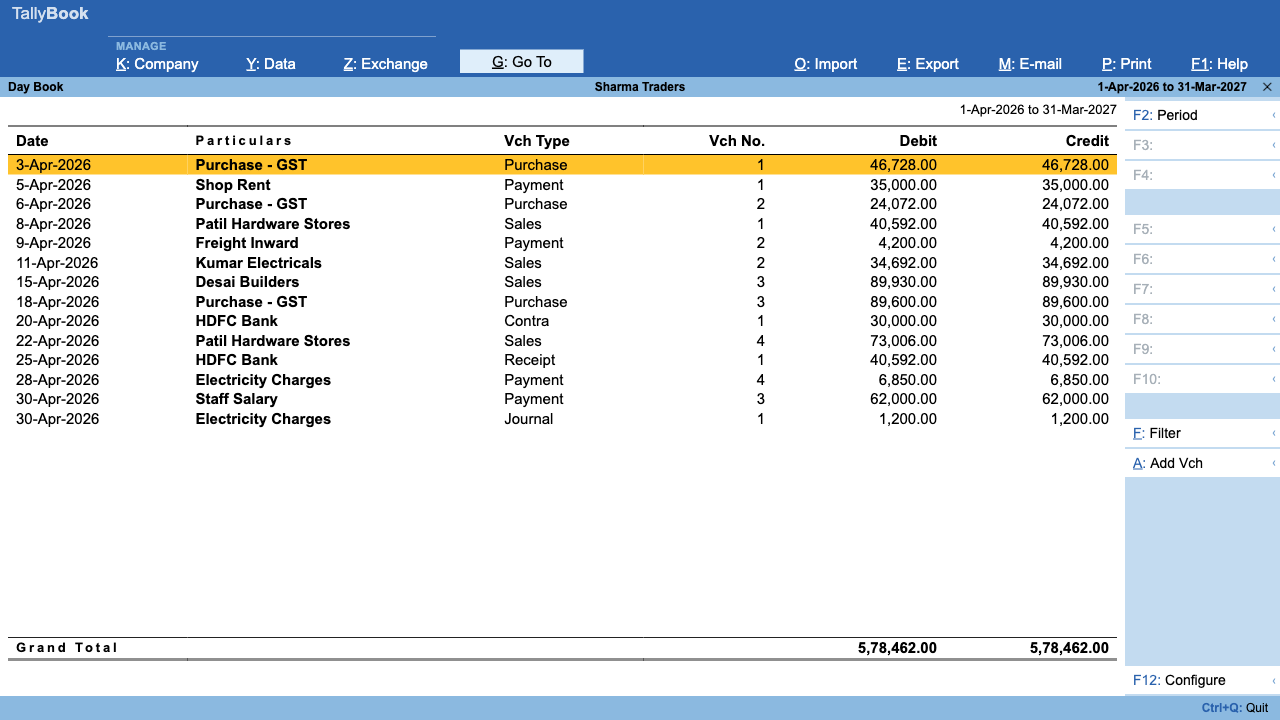
Open the Day Book from the Gateway (K). Press Enter on any line to open that voucher, and use Alt+F2 to change the period.
TallyBook is not affiliated with Tally Solutions Pvt. Ltd. TallyPrime is a trademark of its owner.