Trial Balance explained: what it shows, why it must tally and how to find a difference
The Trial Balance is the first report an accountant opens at the end of a month or year. It is a one-page summary of every ledger in your books, and it is the quickest test that your double-entry bookkeeping is complete. This guide explains what it shows, why it must “tally”, and how to use it in TallyBook.
What the Trial Balance shows
Open it from Gateway of Tally › Display More Reports › Trial Balance, or with Alt+G › Trial Balance. TallyBook lists your primary groups with these columns:
| Column | Meaning |
|---|---|
| Particulars | Group or ledger name. Groups are in bold. |
| Opening | Balance at the start of the period, marked Dr or Cr |
| Debit | Total debits posted during the period |
| Credit | Total credits posted during the period |
| Closing | Balance at the end of the period: opening + debits − credits |
The Grand Total row at the bottom is the line that matters. The Debit and Credit totals must be equal, and the total Opening and Closing balances must come to zero, because every Dr balance somewhere is matched by a Cr balance elsewhere.
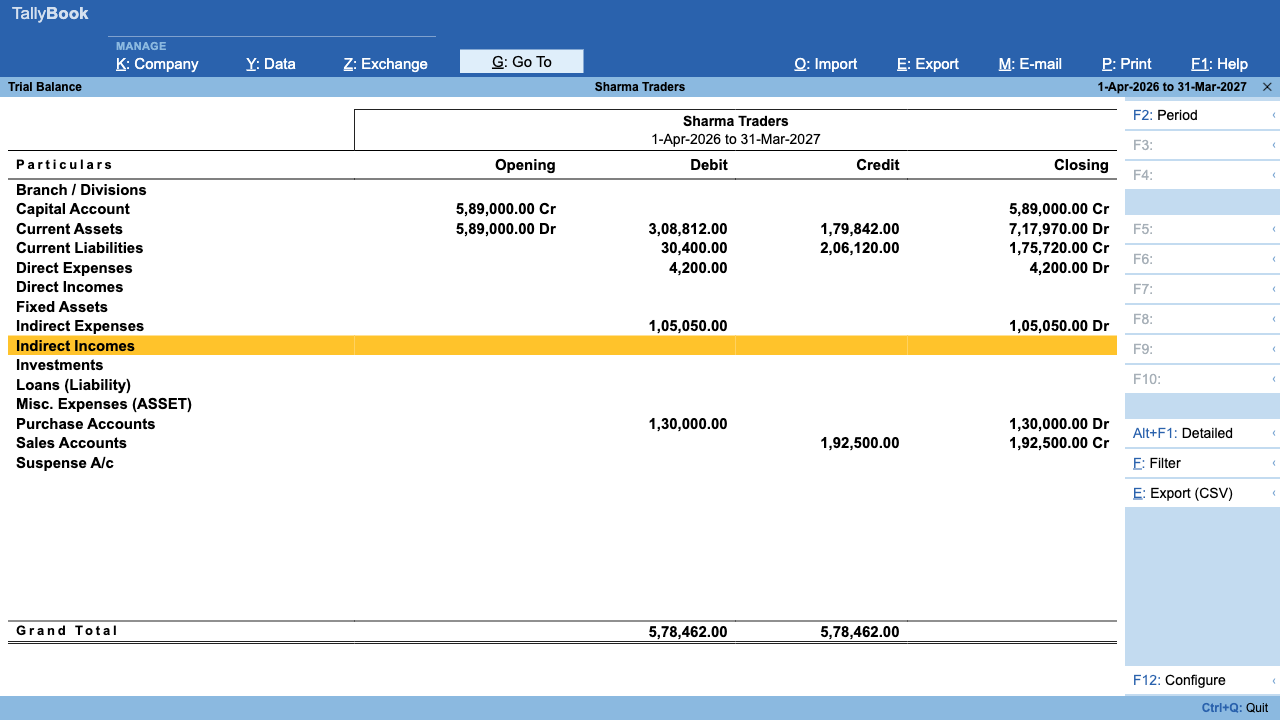
Why it must tally
Every transaction is recorded with equal debit and credit amounts (see double-entry basics). Add up every account and the debits must therefore equal the credits. If they do not, something was recorded on one side only, or with different amounts on each side.
Common reasons for a difference
In manual books, a difference usually comes from posting or totalling mistakes. In TallyBook those cannot happen inside a voucher: a voucher is refused unless total debit equals total credit. So when the Trial Balance does not tally, look at opening balances:
- An opening balance on the wrong side. A supplier's balance entered as Dr instead of Cr doubles the gap.
- A missing ledger. You entered all your assets but forgot a loan or the capital account.
- A typing error in one opening amount.
- Openings imported twice. Importing masters again with “Combine Opening Balance” adds the new opening to the existing one.
When openings do not balance, the Grand Total Opening column shows the gap as a Dr or Cr amount, and the Balance Sheet shows a line called Difference in Opening Balances.
Finding the difference step by step
- Open the Trial Balance and note the Grand Total in the Opening column. That is the amount you are looking for.
- Press Alt+F1 to switch to the detailed view so every ledger is visible.
- Press F12, turn off Show transactions and turn on Hide ledgers and groups with zero balances, then accept. Empty ledgers disappear and the Opening column is easier to scan.
- Compare each opening balance with last year's closing Balance Sheet from your CA. Look for an amount equal to the difference, or to half of it (a balance on the wrong side).
- Press Enter on a wrong ledger to open it, then correct it in Gateway › Alter › Ledger. The Trial Balance updates immediately.
F12, Alt+F1 and Ctrl+F on the Trial Balance
| Key | What it does |
|---|---|
| F12 | Configure: show or hide opening balances, transactions (Debit / Credit), closing balances; hide zero-balance ledgers and groups; open in detailed format by default |
| Alt+F1 | Switch between condensed (primary groups only) and detailed (every sub-group and ledger) |
| Ctrl+F | Filter: type part of a name, such as “bank” or “GST”, to show only matching rows. Esc clears it. |
| Alt+F2 | Change the period |
| Enter | Drill down: a group opens its Group Summary, a ledger opens its vouchers |
| Alt+E | Export the Trial Balance as a CSV file |
The same screen, opened for a single group, is the Group Summary (Display More Reports › Account Books › Group Summary). Everything above works there too.
When to look at it
- Right after setting up a company, to confirm opening balances.
- Every month, before you file GST returns, to spot odd balances such as a Dr balance on a supplier.
- At year end, before your CA finalises accounts.
Next: reading the Balance Sheet and P&L and every report shortcut in one place.
Frequently asked questions
If my Trial Balance tallies, are my books correct?
Not necessarily. A tallied Trial Balance proves only that debits equal credits. Posting to the wrong ledger, entering the wrong amount on both sides or missing a bill completely still leaves it tallied.
Why does my Trial Balance show an opening total that is not zero?
The opening balances entered on your ledgers do not add up. Open each ledger with an opening balance, check the amount and its Dr or Cr side, and correct it in Alter › Ledger.
Does TallyBook remember my F12 settings?
Yes. The options you choose in F12 are remembered on that computer for that report until you change them.
How do I send the Trial Balance to my CA?
Press Alt+E or Ctrl+E to save it as a CSV file, which opens in Excel, or use Alt+P to print or save it as PDF.
TallyBook is not affiliated with Tally Solutions Pvt. Ltd. TallyPrime is a trademark of its owner.