Report power features in TallyBook: F12, Alt+F1, Ctrl+F, Alt+F2 and drill-down
TallyBook's reports look simple, but a handful of keys turn each one into a working tool: choose the columns, expand the detail, filter to what you need, change the dates and drill all the way down to a voucher. These are the same keys TallyPrime users already have in their fingers. This guide covers each one and maps the reports menu.
The keys at a glance
| Key | Name | What it does |
|---|---|---|
| F12 | Configure | Show or hide columns and rows; remembered per report |
| Alt+F1 | Detailed / Condensed | Expand every sub-group and ledger, or collapse back |
| Ctrl+F | Filter | Show only rows containing the text you type |
| Alt+F2 | Period | Change the from and to dates (F2 also works in reports) |
| Enter | Drill down | Open the highlighted group, ledger, month or voucher |
| Esc | Back | Return one level |
| Up Down PgUp PgDn Home End | Move | Move the highlight; PgUp and PgDn jump ten rows |
| Ctrl+E / Alt+P | Export / Print | Save the visible table as CSV, or print it |
F12: configure a report
Press F12, switch options with the toggles, and accept with Ctrl+A. The choices are saved for that report on that computer.
| Report | F12 options |
|---|---|
| Trial Balance and Group Summary | Show opening balances; show transactions (Debit / Credit); show closing balances; hide ledgers and groups with zero balances; show detailed format |
| Balance Sheet and Profit & Loss A/c | Vertical layout; percentages; working capital; gross profit section; hide zero balances (plus Alt+F1 detailed view and Ctrl+F filter) |
| Bills Receivable and Bills Payable | Ageing columns: 0–30, 30–60, 60–90 and over 90 days |
| Day Book | Show cancelled vouchers; show voucher type; show voucher number |
| Ledger Vouchers | Show running balance; show voucher type; show voucher number |
| Cost Centre Summary, Budget Variance, Group Interest | Hide rows with no transactions, budget or interest; show closing balances where relevant |
Many inventory, banking, payroll and statutory reports have their own F12 options too. Look for F12: Configure at the bottom of the button bar on the right.
Alt+F1: detailed and condensed
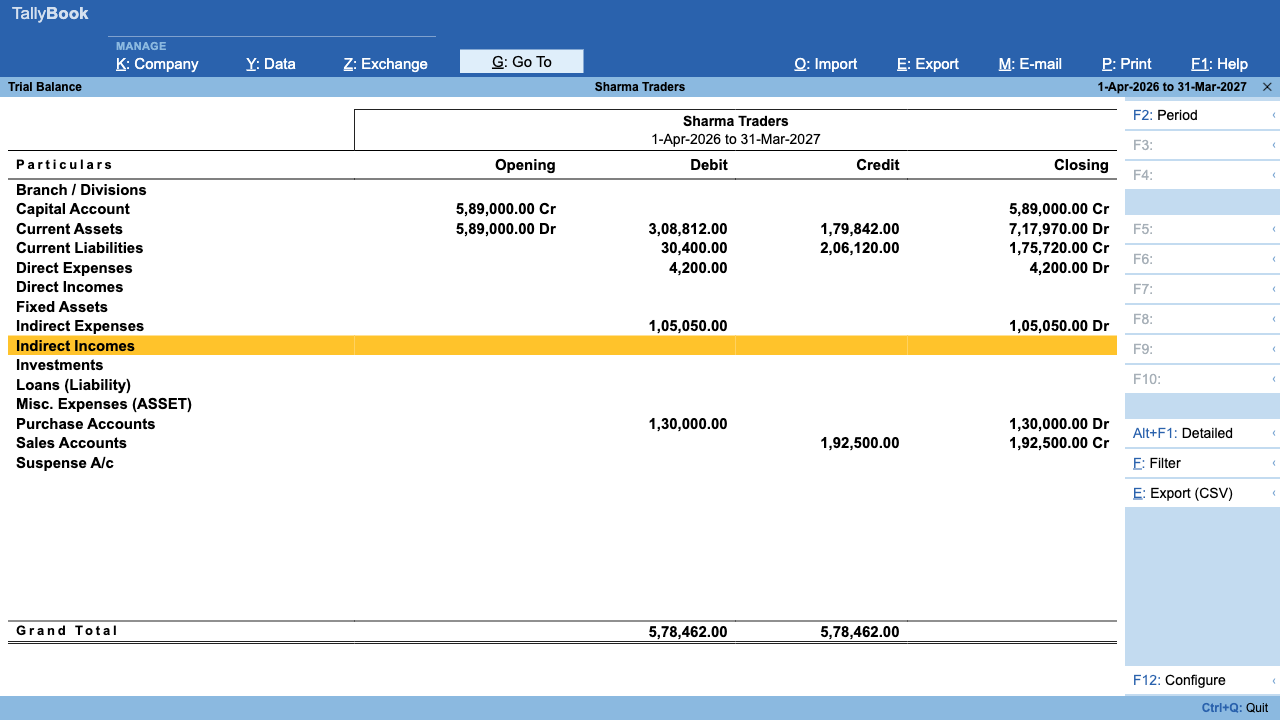
On the Trial Balance, the Balance Sheet, the P&L and any Group Summary, the condensed view lists only the top-level groups. Alt+F1 expands every sub-group and ledger in place, indented under its parent, so you can read the whole chart of accounts with balances on one screen. Press it again to collapse. To always open detailed, turn on “Show detailed format” in F12.
Ctrl+F: filter
Press Ctrl+F and a Filter box appears above the report. Type part of a name: “GST” on the Trial Balance shows only GST ledgers; a party name on the Day Book shows only that party's vouchers. In the Day Book and Ledger Vouchers the filter also matches the voucher type, number and date. Enter keeps the filter and returns you to the rows; Esc clears it. If nothing matches, the report says “No rows match the filter”.
Alt+F2: change the period
Press Alt+F2 and enter the from and to dates. The period applies to every report until you change it, so you can open the Trial Balance for a quarter and then drill into ledgers for the same quarter. The Balance Sheet uses the end date, “as at”; outstanding reports use it as “as on”.
Enter: drill down to the source
Drill-down works on most reports: a register opens month by month and then the vouchers in that month; the Day Book and Ledger Vouchers open the voucher itself; Bills Receivable opens the party's ledger. You can alter a voucher you reach this way and accept it; the reports above it update immediately. Cancelled vouchers cannot be altered.
Display More Reports: the map
From the Gateway press D. Some sections appear only when the matching feature is on in F11.
| Section | Reports inside |
|---|---|
| Trial Balance, Day Book | Opened directly |
| Account Books | Cash/Bank Book; Ledger; Group Summary; Sales, Purchase, Payment, Receipt, Journal, Contra, Credit Note and Debit Note Registers |
| Statements of Accounts | Receivables (Bills Receivable) and Payables (Bills Payable); Group and Ledger Interest Calculation; Budget Variance |
| Inventory Books (inventory on) | Stock Summary, Stock Query, Godown Summary, group and category summaries, Reorder Status, Stock Ageing, Batch Summary, movement analysis, orders and pending bills, price lists |
| Statutory Reports (GST or TDS on) | GSTR-1, GSTR-3B, GSTR-2B Reconciliation, HSN/SAC Summary, Tax Analysis; TDS reports when enabled |
| Analysis & Verification | Cash Flow, Funds Flow, Forex Gain/Loss, Ratio Analysis, Statistics |
| Cost Centres (cost centres on) | Cost Centre Summary, Cost Category Summary, Cost Centre Breakup |
| Payroll Reports (payroll on) | Pay Slip, Payroll Statement, Attendance Sheet, Employee Vouchers |
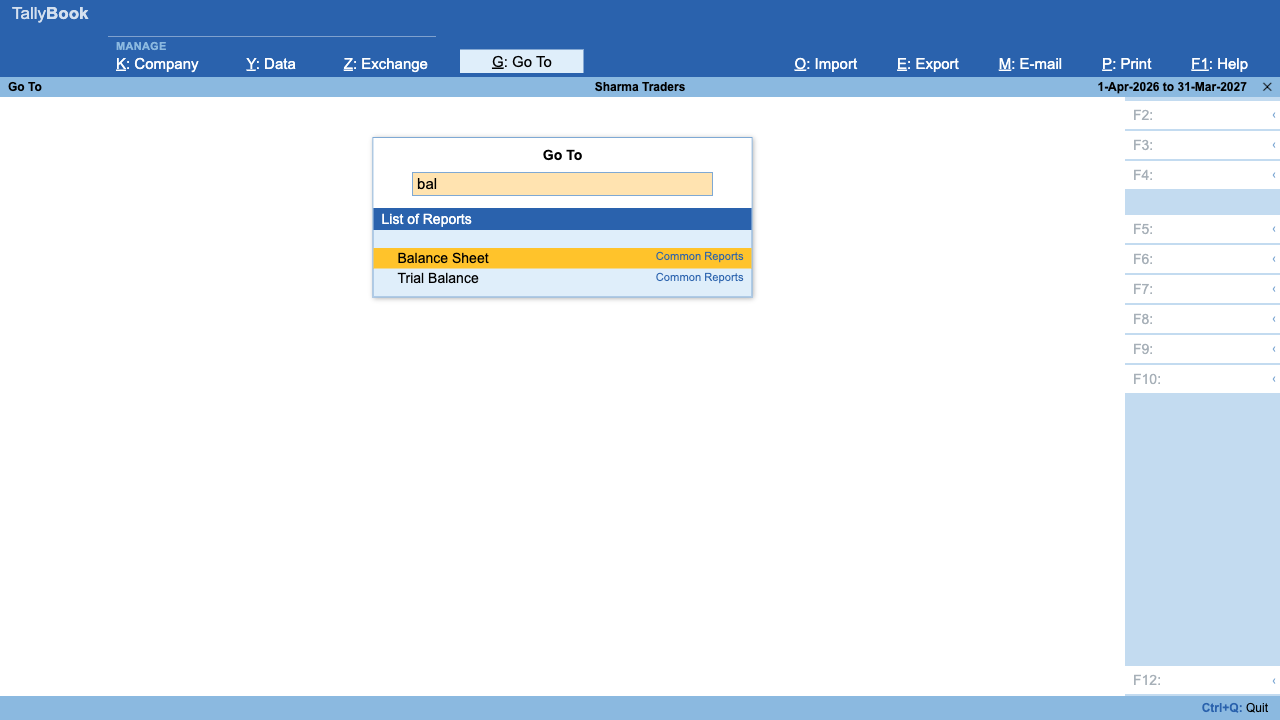
Faster still, press Alt+G (Go To) from anywhere and type a few letters: it lists the common reports, GST returns, create screens, import and export, and every ledger by name.
Not yet available
- Ctrl+F and Alt+F1 on the outstanding reports (Bills Receivable and Payable have F12 ageing columns).
- Ctrl+H change view, Ctrl+B basis of values and Alt+C new column on the Trial Balance; Alt+F1 detail on registers.
- Saved report views.
Put these keys to work on the Trial Balance and the Balance Sheet and P&L, then share results with print, export and WhatsApp.
Frequently asked questions
Does changing the period in one report change it everywhere?
Yes. The period is shared by all reports, as in TallyPrime. The current period is shown at the top right; press Alt+F2 again to change it.
Are my F12 settings saved?
Yes, for each report, on the computer you set them on. They stay until you change them again in F12.
Does F12 work on the Balance Sheet?
Yes, since version 0.1.5. On the Balance Sheet and P&L, F12 offers a vertical layout, percentages, working capital, a gross profit section and hiding zero balances; Alt+F1 gives the detailed view and Ctrl+F filters. On Bills Receivable and Payable, F12 adds ageing columns.
How do I jump straight to one ledger?
Press Alt+G and start typing the ledger name. Go To lists every ledger as “Ledger: name” alongside the common reports.
TallyBook is not affiliated with Tally Solutions Pvt. Ltd. TallyPrime is a trademark of its owner.