Print, export, e-mail and WhatsApp reports from TallyBook
Sooner or later every report leaves the computer: a ledger statement for a customer, the Trial Balance for your CA, the Day Book for a partner. TallyBook gives you three ways out, on the same keys as TallyPrime: print, export and share. Each works on the report or voucher currently on screen.
Print and preview (Alt+P)
Press Alt+P on any report or voucher. The Print menu offers:
| Option | Key | What it does |
|---|---|---|
| Current | U (or Ctrl+P directly) | Prints what is on screen |
| Others | O | Multi-account printing: listed, not available yet |
| Configuration | N | Printer settings |
- Open the report, for example the Day Book, and set the period with Alt+F2.
- Press Ctrl+P. The Print screen shows the period, report type, printer and number of copies.
- Press I for a preview, or C to configure the printer and copies (1 to 99).
- Press P or Enter to print. Your computer's print dialog opens.
- Choose a printer, paper size and orientation there, or choose the PDF option to save a PDF file.
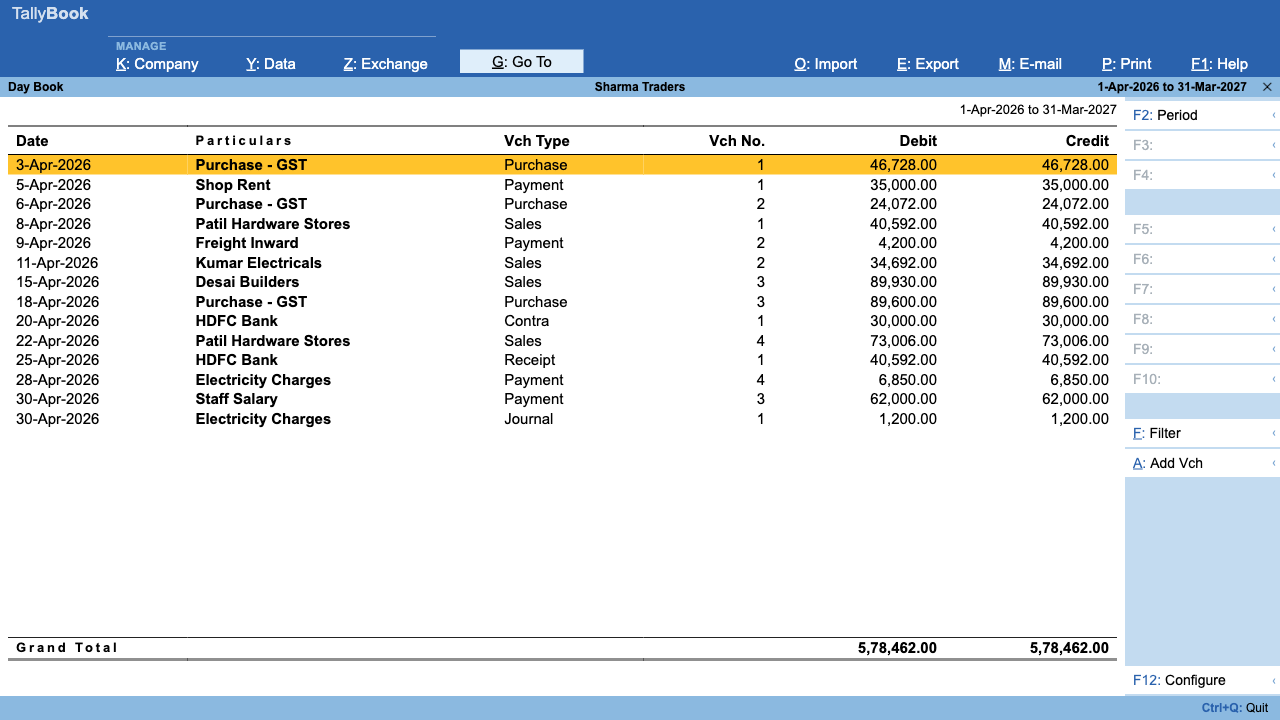
If nothing printable is open, TallyBook says “Open a report or voucher to print it”. Digital signatures on printouts are not available yet.
Export as CSV (Ctrl+E)
Press Ctrl+E on any screen with a table. TallyBook asks where to save and writes a .csv file named after the report, which opens in Excel, LibreOffice or Google Sheets. Every visible column is included, so set up the report first: choose the period, use F12 to show or hide columns, Alt+F1 for detail, and Ctrl+F to filter rows. On the Trial Balance and Group Summary, Alt+E also exports CSV; elsewhere Alt+E opens the data Export screen.
Share by e-mail (Alt+M › E-mail)
Press Alt+M for the Share menu, then Current (R) under E-MAIL, or press Ctrl+M directly.
- Choose E-mail from. The first time, create a profile with your sender name and address.
- Type E-mail to; separate several addresses with commas.
- Check the Subject (the report title is filled in) and add a message if you like.
- Press C to choose what goes in: Show Company Name, Show GSTIN/UIN, and Attach report as CSV file (on by default).
- Press M. If CSV is on, TallyBook first asks where to save the file.
- Your default mail app opens with the address, subject and a text summary of the report. Attach the saved CSV file yourself, then send.
Share on WhatsApp (Alt+M › WhatsApp)
From the Share menu choose Current (C) under WHATSAPP, or press Ctrl+Alt+W.
- Enter WhatsApp to: one or more mobile numbers with country code, separated by commas.
- Choose File Format: Text (Summary message), or CSV, which also asks for a file name.
- Press I to preview the message, then W.
- WhatsApp opens a chat for each number with the summary typed in. If you chose CSV, the file has been saved on your computer: attach it in the chat, then send.
Template management, an inbox and WhatsApp configuration appear in the menu but need a WhatsApp Business account and are not available.
Which one should I use?
| You want to… | Use |
|---|---|
| Give a printed copy or a PDF | Ctrl+P, then Save as PDF |
| Work on the numbers in Excel | Ctrl+E |
| Send a quick balance to a customer | Alt+M › WhatsApp, Text |
| Send full figures to your CA | Alt+M › E-mail, with the CSV attached |
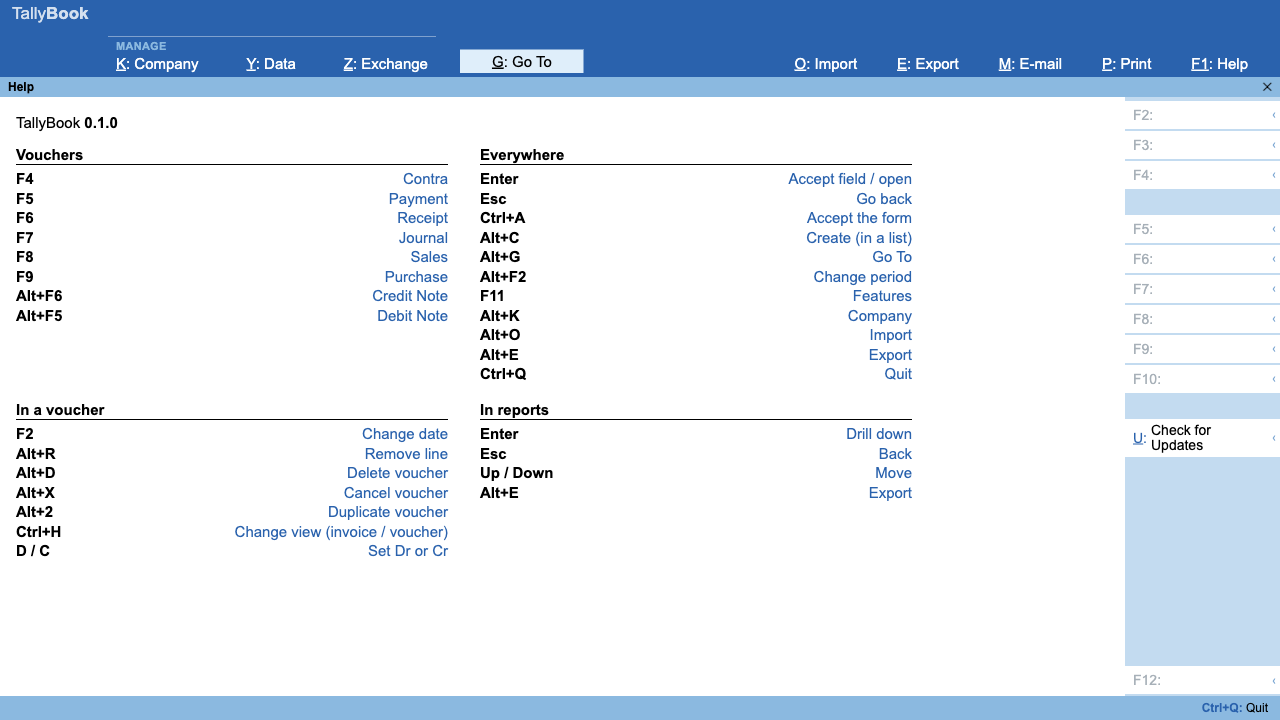
Related: setting up a report with F12, Alt+F1 and filters, sending outstanding statements and all keyboard shortcuts.
Frequently asked questions
Does TallyBook send e-mails by itself?
No. It opens your default mail application with the address, subject and a text summary filled in. You review and send it from there. The SMTP fields in an e-mail profile are saved for later but not used to send mail today.
Why is the e-mail text cut short?
Mail links have a length limit, so long reports are summarised and end with “…”. Turn on Attach report as CSV file in Configure (C) to send the complete data as an attachment.
How do I make a PDF?
Press Alt+P › Current, then P to print. In your computer's print dialog choose Save as PDF (macOS and Linux) or Microsoft Print to PDF (Windows).
Can I print all ledger accounts in one go?
Not yet. Others (multi-account printing and sharing) lists Cash Book, Bank Book and ledger options, but they are not available in this preview. Print each ledger separately.
TallyBook is not affiliated with Tally Solutions Pvt. Ltd. TallyPrime is a trademark of its owner.