Import from Excel into TallyBook: masters and transactions from .xlsx or CSV
Typing hundreds of customers, items or opening balances by hand is slow and error-prone. If the data already lives in a spreadsheet, or in another program that can export to Excel, TallyBook can import it. The process follows TallyPrime's Excel import closely, including its sample file layouts, so files prepared for Tally usually work as they are.
What you can import
| Import | What it covers |
|---|---|
| Masters | Group, Ledger, Stock Group, Stock Category, Stock Item, Unit, Godown, Cost Centre |
| Transactions | Vouchers: date, voucher type, number, ledger lines with Dr/Cr amounts, narration |
Files can be Excel workbooks (.xlsx) or .csv. The same screen also imports Tally XML exports; JSON is listed but not supported yet.
Step 1: start from a sample file
Column names matter, so begin with TallyBook's own sample, which follows Tally's sample Excel layout.
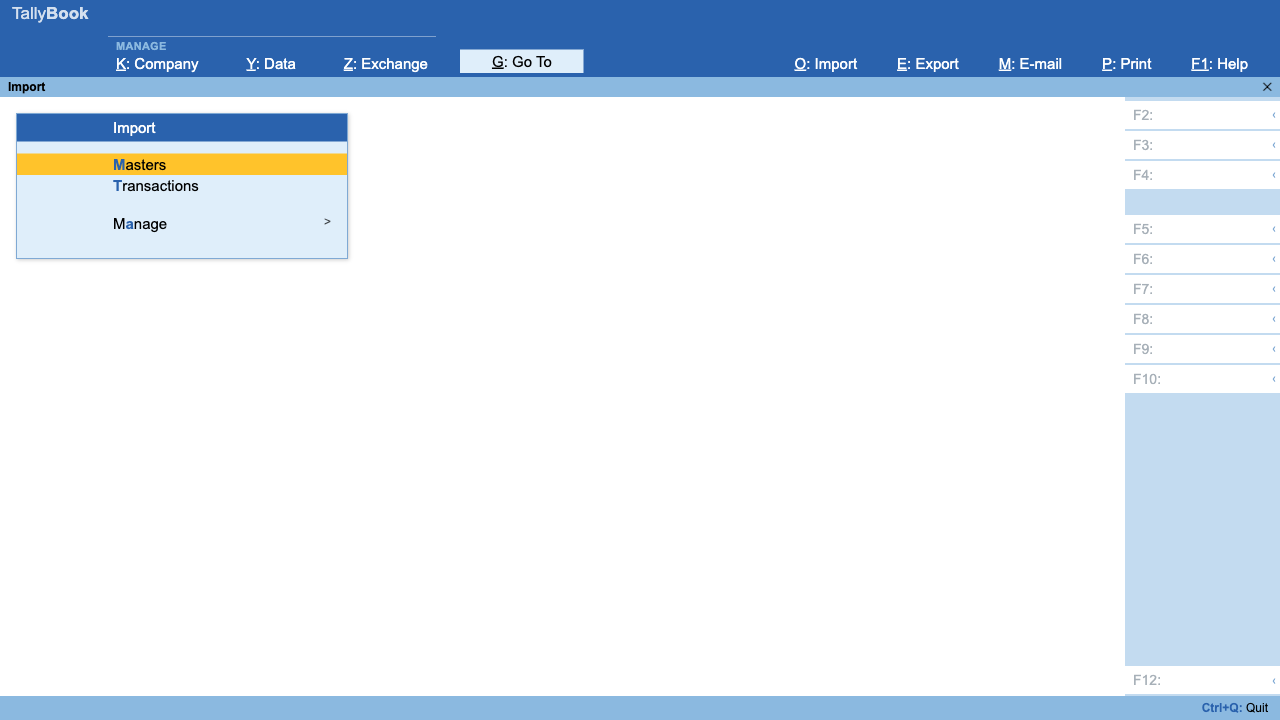
- Press Alt+O to open the Import menu.
- Choose Manage (A) › Sample Excel File (S), then Masters or Transactions.
- Press C to choose which master type the sample is for, then E to export it.
- Open the file in Excel or LibreOffice and paste your data under the headings.
Typical headings are:
| Sheet | Columns |
|---|---|
| Ledgers | Name, Group Name, Ledger - Opening Balance, Ledger Opening Balance - Dr/Cr, Bill - Date, Bill - Name, Bill - Amount, Bill Amount - Dr/Cr, Address, State, Country, Pincode (plus optional GSTIN, PAN, Credit Period and contact fields) |
| Vouchers | Voucher Date, Voucher Type Name, Voucher Number, Ledger Name, Ledger Amount, Ledger Amount Dr/Cr, Narration |
In a voucher sheet, a row with a date starts a new voucher; the rows below it without a date add more ledger lines to the same voucher. Each voucher must balance, exactly as in manual entry.
Step 2: import masters
- Press Alt+O › Masters (M).
- Press Ctrl+O and select your .xlsx or .csv file. File Format is set from the extension.
- Pick the Worksheet Name and keep Mapping Template as Default Template, which matches columns by heading.
- Check Type of Master; TallyBook guesses it from the sheet but you can change it.
- Choose the Behaviour of Import if master already exists (see below).
- Leave Preview Import Summary and Backup Company Data before Import on, and press Ctrl+A.
- Review the summary (rows read, to create, to alter, ignored, exceptions) and press I to import.
The three behaviours
| Behaviour | When a master with the same name exists | Use it when |
|---|---|---|
| Ignore Duplicates (default) | It is left untouched and counted as ignored | Adding new masters to an existing company |
| Modify with New Data | Its fields are updated from the file | Correcting addresses, GSTINs or opening balances in bulk |
| Combine Opening Balance | The file's opening balance is added to the existing one, and opening bills are appended | Merging balances from two sources into one ledger |
Step 3: import transactions
Choose Alt+O › Transactions (T) and follow the same steps. TallyBook first checks that the sheet looks like a voucher sheet; if Voucher Date, Ledger Name and Ledger Amount Dr/Cr columns are missing, it says so before reading anything. Import masters before transactions so every ledger named in the vouchers already exists.
Step 4: read the exceptions report
When the import ends you see either “Import completed successfully” or “Import completed with N exception(s)”. The Import Exceptions report groups problems by message and lists the row number of each, for example an unknown group, an invalid date or a voucher whose debits and credits differ. Fix those rows in the spreadsheet and import again with Ignore Duplicates, so rows that went in the first time are not doubled.
Limits in this preview
- Only the Default Template is available; you cannot create your own column mappings yet.
- Old .xls files and JSON are not supported.
- Rejected rows are fixed in the spreadsheet, not inside TallyBook; test with a few rows first.
Moving from TallyPrime? You can also import its XML export directly; see switching from Tally. For keeping your data safe, read backup and restore, and for where each master belongs, groups and ledgers.
Frequently asked questions
Can I import an old .xls file?
No. TallyBook reads .xlsx workbooks and .csv files. Open the .xls file in Excel or LibreOffice and save it as .xlsx first.
Do the column headings have to match exactly?
They have to match the field names, but TallyBook ignores case, spaces and punctuation and accepts common alternatives, such as Group or Under for the parent group. The safest start is the sample file from Alt+O › Manage › Sample Excel File.
Can I import vouchers for ledgers that do not exist yet?
Import the ledgers first as masters. A voucher that names an unknown ledger is reported in Import Exceptions as “Referenced master is missing” instead of being imported.
Can I undo an import?
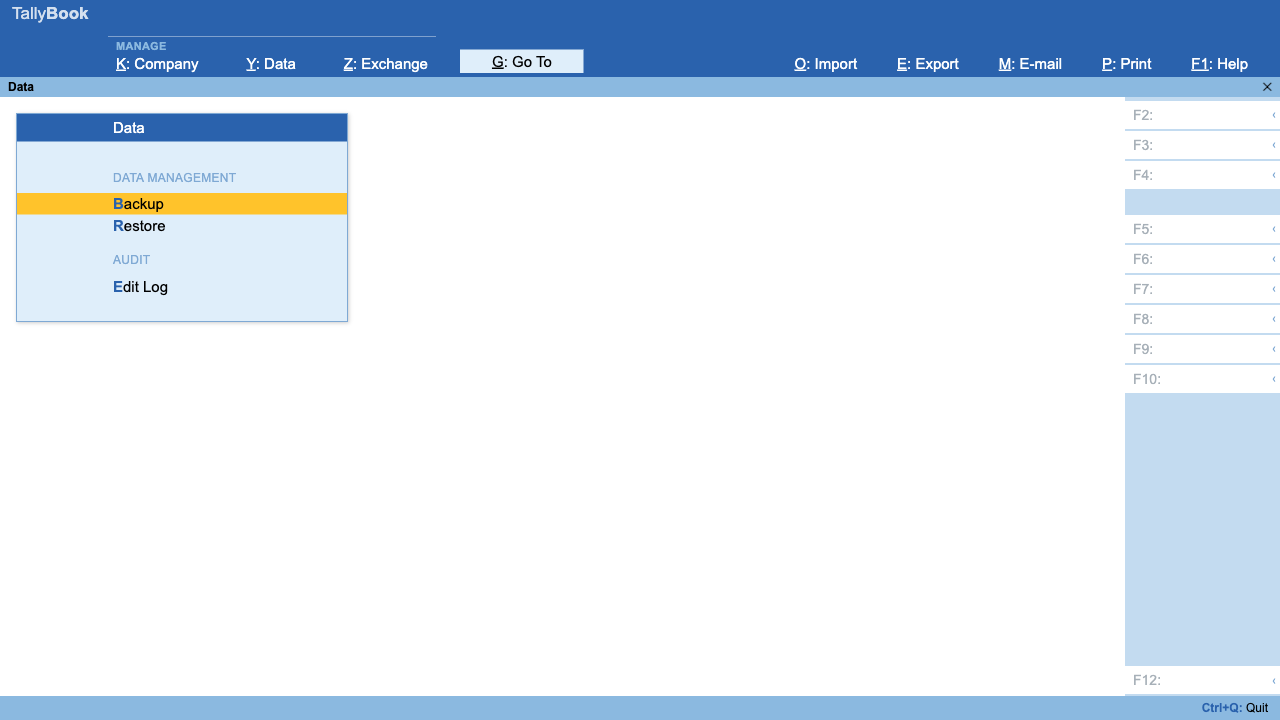
There is no undo button, which is why Backup Company Data before Import is on by default. If an import goes wrong, restore that backup from the Data menu (Alt+Y).
TallyBook is not affiliated with Tally Solutions Pvt. Ltd. TallyPrime is a trademark of its owner.