Backup, restore and data safety in TallyBook
Accounting data is the one thing on a business computer you cannot download again. TallyBook keeps it local and makes backups a two-key job. This page explains where the data is, how to protect it, and the honest limits of the current version.
Where your data lives
TallyBook stores each company in its own database file inside its application data folder on your computer. Nothing is sent to us or to any cloud service. The internet is used only to check for app updates, and updating keeps your data.
Backup
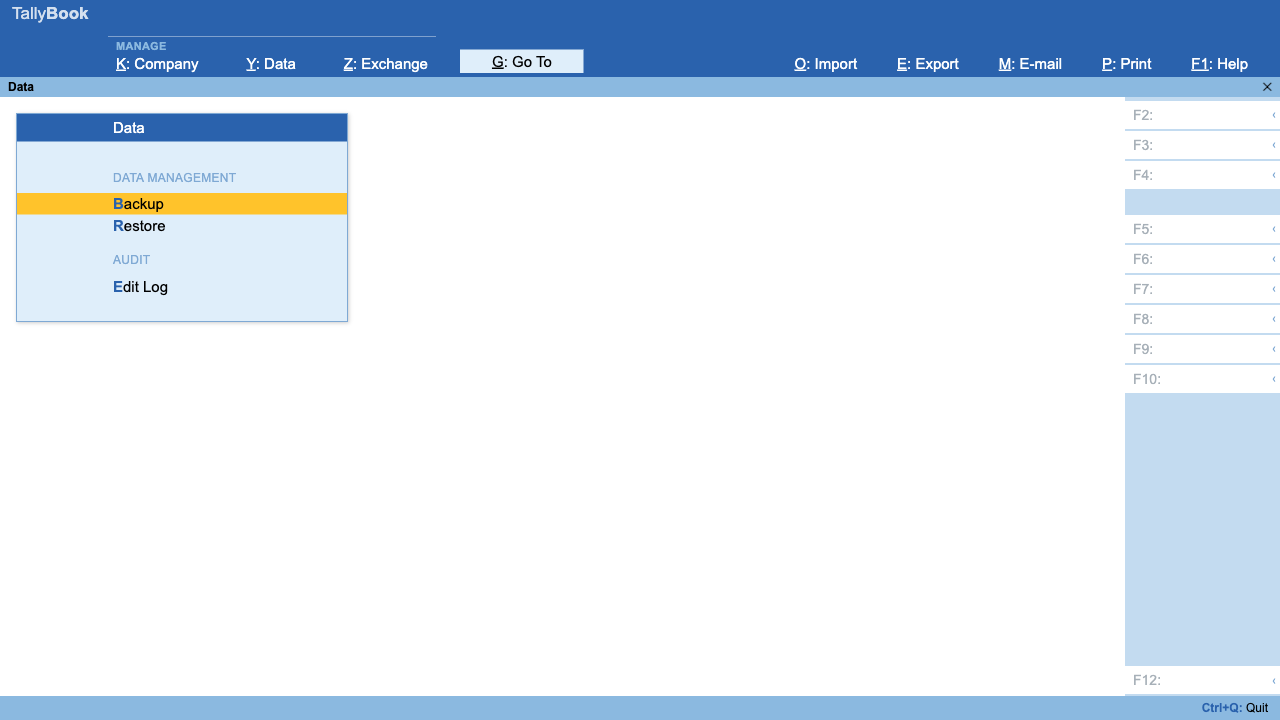
- From the Gateway press Alt+Y to open Data.
- Press B (Backup). A save window opens with a name like
Sharma Traders 2026-11-03.tbbackup.json. - Choose a pen drive, external disk or a synced cloud folder and save. TallyBook confirms "Backup saved".
Imports also offer Backup Company Data before Import, which is on by default.
A routine that works
| When | What | Keep |
|---|---|---|
| End of every working day | Backup to a pen drive or synced folder | Last 7 |
| Before GST filing or a big import | Extra backup, named for the occasion | Until next month |
| Month end | Backup kept away from the office | 12 months |
| Year end, after finalisation | Backup stored permanently | As long as records must be kept |
Automatic scheduled backup is not available yet, so make it part of closing the day.
Restore
- Alt+Y → R (Restore) and pick the backup file.
- TallyBook warns: "Restoring replaces ALL data in this company with the backup." Choose Yes only if that is what you want.
- It reports how many records were restored. Check the Trial Balance and Day Book.
Tip: before restoring an old backup to look something up, take a fresh backup of today's data first.
Edit log: who changed what
Alt+Y → E opens the Edit Log, a list of changes to masters and vouchers, latest first, with date and time, action, type, particulars and user. Ctrl+F filters it.
Users and passwords
- Alt+K → Company Security. Set Use Security Control to Yes and enter the Name of Administrator and password.
- Users and Passwords: Alt+C creates a user, and you pick a role for them, such as Owner or Data Entry. User Roles lists the roles.
- Set rules such as Minimum password length under Password Policy, and fine-tune what each role may do in Security Control.
- Anyone can use Change User and Change Password from the same menu.
A user without access to a report or action sees "You do not have access" instead.
TallyVault: encrypted data and backups
In Company Security you can also set a TallyVault password. Since version 0.1.5 this encrypts the company's data file on your computer, and backups taken from that company are encrypted as well. TallyBook asks for the password before the company opens. Each company has its own TallyVault, set, changed or removed under Alt+K → Company Security. A lost TallyVault password cannot be recovered: it never leaves your computer, so we cannot reset it, and without it neither the company nor its encrypted backups can be opened. Write it down and keep it somewhere safe. Disk encryption (BitLocker on Windows, FileVault on Mac, disk encryption on Linux) is still a good idea for the rest of the computer. See multiple companies and TallyVault encryption.
Frequently asked questions
Is my TallyBook data uploaded anywhere?
No. It stays on your computer. The app goes online only to check for updates.
Where should I keep backups?
In at least two places besides the computer, for example a pen drive and a cloud folder, with one copy away from the office.
Does restoring merge data?
No. Restore replaces all data in the company with the backup. Take a fresh backup first if you may need today's entries.
Does the TallyVault password encrypt my data?
Yes, since version 0.1.5. With a TallyVault password set, the company data file and its backups are encrypted. A lost TallyVault password cannot be recovered, so keep it safe.
Can I set up automatic backups?
Not in the current version. Take a backup with Alt+Y → B at the end of each day.
Related: Choosing accounting software · Tally on Mac
TallyBook is an independent product made by Techardent Labs and is not affiliated with, endorsed by or connected to Tally Solutions Pvt. Ltd. TallyPrime and Tally are trademarks of their owner. Tax rules change often; confirm current rates, limits and due dates on the official portals or with your Chartered Accountant.