Payroll in TallyBook: employees, pay heads, PF, ESI, PT and pay slips
For a small team, payroll is mostly the same calculation every month with a few changes for leave, overtime and joiners. TallyBook keeps the rules in masters (pay heads and salary details) so the monthly work is attendance plus one voucher.
1. Switch payroll on
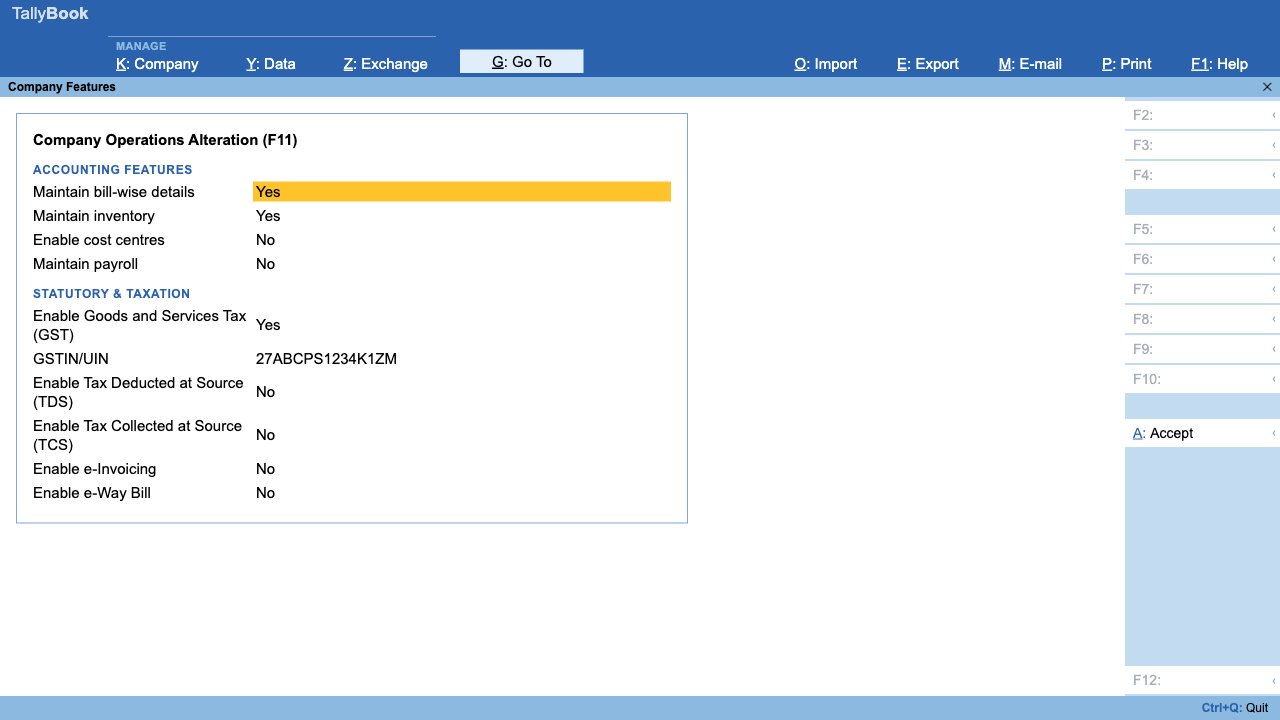
Press F11, set Maintain payroll to Yes and accept. The Create and Alter menus now show a Payroll Masters section: Employee Group, Employee Category, Employee, Attendance/Production Type, Pay Head and Salary Details.
2. Create employees
Create → Employee. Besides name, group and date of joining, the form has statutory details: Income Tax Number (PAN), Aadhaar number, Universal Account Number (UAN), PF account number, PRAN and ESI number, plus bank details for salary transfer. Employee groups (for example, Office and Factory) let you set salary details and autofill the payroll voucher for a whole group at once.
3. Create attendance types and pay heads
An Attendance/Production Type is what you count: days present, leave without pay, overtime hours or pieces produced. A Pay Head is a line on the pay slip. Each has a Pay head type and a Calculation type:
| Pay head type | Example |
|---|---|
| Earnings for Employees | Basic, HRA, conveyance |
| Deductions from Employees | Salary advance recovery, canteen |
| Employees' Statutory Deductions | Employee PF, employee ESI, professional tax |
| Employer's Statutory Contributions | Employer PF, employer ESI |
| Loans and Advances, Reimbursements, Bonus, Gratuity | As the names say |
Calculation types are As Computed Value, As User Defined Value, Flat Rate, On Attendance and On Production. Basic pay is often On Attendance (paid for days present); PF and ESI are As Computed Value.
4. PF, ESI and professional tax
For a computed pay head, set Statutory pay head to Provident Fund, Employees State Insurance or Professional Tax. TallyBook fills in a starting percentage, wage ceiling or slab table. Treat these as placeholders and check every figure: PF and ESI rates and wage limits are notified by the government, and professional tax slabs differ from state to state (some states have none). Confirm current values on epfindia.gov.in, esic.gov.in, your state's professional tax department, or with your CA. You can edit the percentage, Maximum value of base, Not applicable above and the slabs.
5. Salary Details
Create → Salary Details, pick an employee or group, then list pay heads with an Effective From date and the rate or amount. When pay changes, add a new line with the new effective date instead of overwriting the old one.
6. Monthly attendance and payroll
- Press Alt+G, choose Attendance Voucher, enter each employee's days or hours and accept.
- Press Ctrl+F4 for a Payroll Voucher. Set the date (F2) to the last day of the month and choose the Account, such as a salary payable ledger or your bank.
- Press Ctrl+F (Autofill), choose an employee group or All Items. Employees and their pay heads fill in from Salary Details, and the narration is set to the pay period.
- Check the amounts, change any one-off figure, then Ctrl+A.
7. Pay slips and reports
Display More Reports → Payroll Reports has Pay Slip (F4 changes employee), Payroll Statement, Attendance Sheet and Employee Vouchers. Print a pay slip with Ctrl+P or e-mail it with Ctrl+M.
Since version 0.2.0 payroll also works out income tax on salary by slab under the new or old regime (with rebate, surcharge and cess) from each employee's Income Tax Declarations, and gratuity under the Labour Codes. The Income Tax Computation and Gratuity reports show the working.
Frequently asked questions
Does TallyBook calculate PF and ESI automatically?
Yes, once you create PF and ESI pay heads with Statutory pay head set and include them in Salary Details. Review the pre-filled rates and ceilings against the current official values first.
Can I set professional tax for my state?
Yes. The PT pay head uses a slab table that you can edit to match your state's slabs.
How do I give an increment?
Add a new line in Salary Details with the new amount and its Effective From date. Earlier months keep the old amount.
Can TallyBook create the PF ECR file?
Not yet. Prepare the return on the EPFO portal using the Payroll Statement as your reference.
Related: TDS on payments · Bank reconciliation
TallyBook is an independent product made by Techardent Labs and is not affiliated with, endorsed by or connected to Tally Solutions Pvt. Ltd. TallyPrime and Tally are trademarks of their owner. Tax rules change often; confirm current rates, limits and due dates on the official portals or with your Chartered Accountant.