Bank reconciliation in TallyBook: statements, cheques and post-dated entries
Bank reconciliation answers one question: why does the bank say one balance and your books another? Usually the reasons are timing (a cheque not yet cleared) and entries only one side knows about (bank charges, interest). TallyBook puts both lists side by side, matches what it can, and leaves you the few lines that need a decision.
The Banking menu
From the Gateway press N for Banking. Your bank ledgers must be under the Bank Accounts (or Bank OD A/c) group.
| Option | Use it to |
|---|---|
| Banking Activities | See every bank account's position in one place |
| Bank Reconciliation | Match book entries with the bank statement |
| Imported Bank Data | View statement lines you have imported, monthly or quarterly |
| Import Bank Statement | Bring in a statement CSV |
| Cheque Register | Track cheque books and the status of each cheque |
| Cheque Printing | Print cheques for payments |
| Post-Dated Summary | See post-dated cheques issued and received, month by month |
Import the bank statement
- Download the statement from net banking as CSV. If your bank only offers Excel, open it and save as CSV.
- Banking → Import Bank Statement. Choose the Bank Ledger, press F4 to choose the file, then Ctrl+A.
- TallyBook recognises columns named like Date, Narration / Description / Particulars, Chq / Ref No., Withdrawal / Debit, Deposit / Credit and Balance.
- A message tells you how many lines were imported, already present, rejected and reconciled. Importing an overlapping statement again does not duplicate lines.
Automatic matching is strict on purpose: the amount must be the same, and either the cheque or reference number matches, or, when the statement line has no number, the date matches.
Reconcile the rest
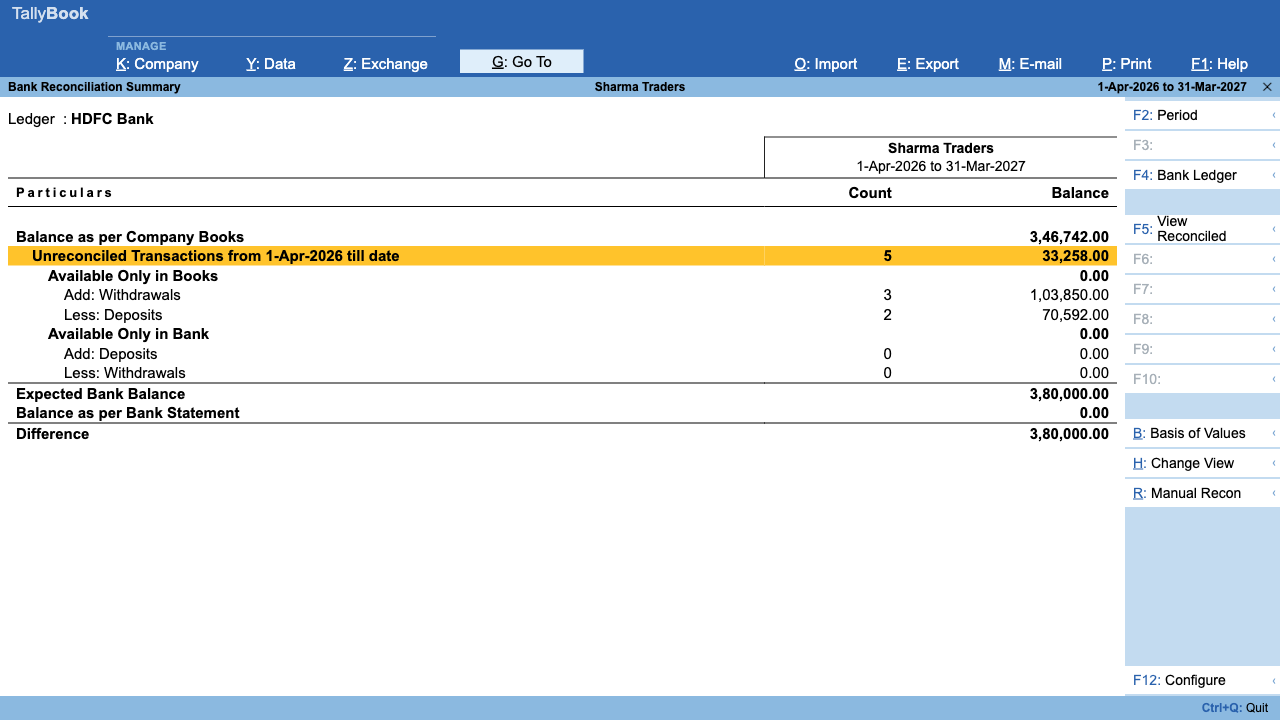
- Banking → Bank Reconciliation → pick the bank. The Bank Reconciliation Summary shows Balance as per Company Books, the unreconciled items split into Available Only in Books and Available Only in Bank, the Expected Bank Balance, the Balance as per Bank Statement and the Difference.
- Press Enter on the unreconciled line. Book entries and bank lines are listed under their own headings.
- Select a line and press F8 (Reconcile). If one match is certain it is linked at once; otherwise pick from the list of candidates. Alt+S shows potential matches.
- Press Space to select several lines and F9 to set a status such as On Hold or Processed.
- Prefer the classic way? Alt+R opens manual reconciliation, where you type the bank date against each entry (F9 updates the bank date) and accept with Ctrl+A.
Starting mid-year? Use Opening BRS (Alt+H in manual reconciliation) to record items that were already uncleared on the day you began.
Cheque books, cheque register and printing
Alter the bank ledger (Gateway → Alter → Ledger) and press F9 for Bank Configuration. Here you can set cheque book ranges and turn on Enable Cheque Printing with a cheque format and layout. The Cheque Register then counts cheques per bank as available, unreconciled, reconciled, blank, cancelled and out of period. Alt+B alters a cheque book, and from a cheque list you can issue a blank cheque or cancel one.
When cheque printing is on, saving a Payment asks for Bank Allocations: Inst No., Inst Date and Favouring Name. Those cheque numbers also make automatic matching more reliable.
Post-dated cheques
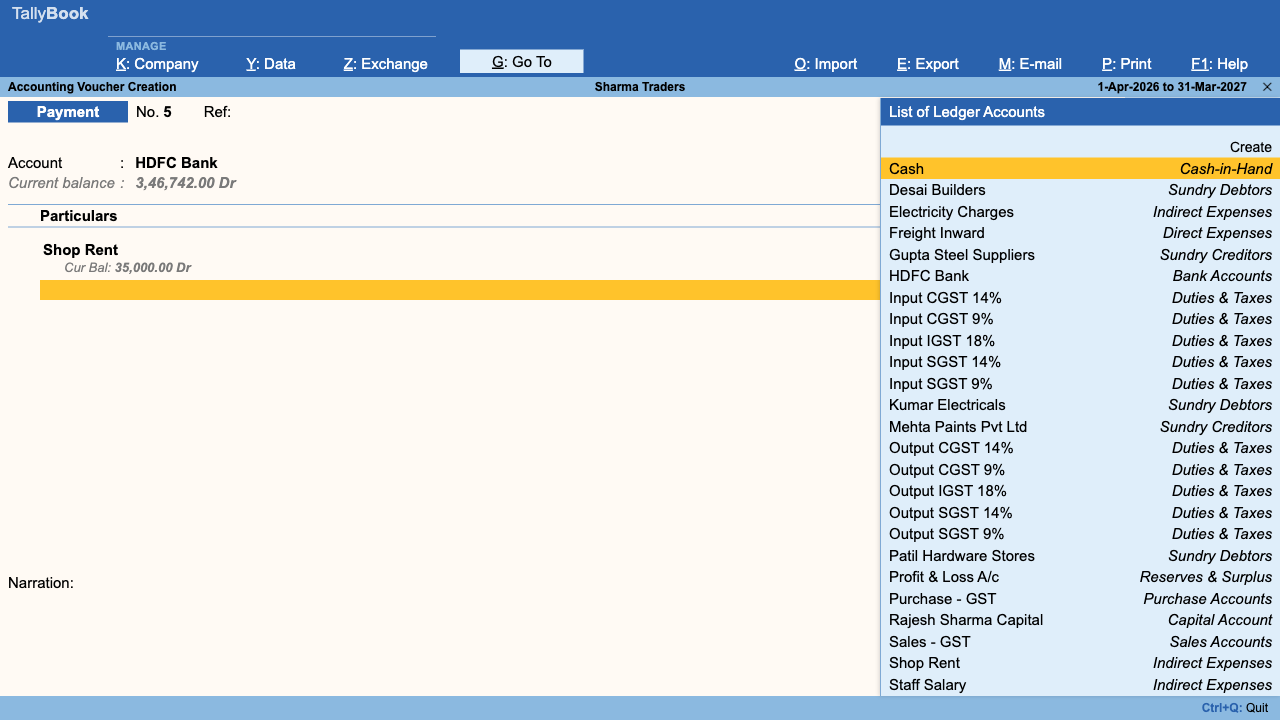
- In a Payment, Receipt or Contra voucher press Ctrl+T. The voucher shows Status : Post-Dated.
- On saving, fill Bank Allocations: cheque number and date, favouring name, PDC issue date and a PDC note.
- Banking → Post-Dated Summary shows them month by month. Open a month to see each cheque, switch between pending and all with F8, and add a note with Alt+R.
- In banking reports, Ctrl+B (Basis of Values) includes or leaves out post-dated vouchers.
Since version 0.2.0 a post-dated voucher stays out of ledger balances and ledger reports until its date arrives, so your bank balance today is not reduced by a cheque dated next month.
Frequently asked questions
Which bank statement formats does TallyBook import?
CSV files with recognisable column headings such as Date, Narration, Chq/Ref No., Withdrawal, Deposit and Balance. Save Excel statements as CSV first.
Will importing the same statement twice create duplicates?
No. Lines already present are skipped and counted as already present.
Why was a matching entry not reconciled automatically?
Automatic matching needs the same amount plus the same cheque or reference number, or the same date when the statement has no number. Use F8 or manual reconciliation for the rest.
How do I record a post-dated cheque?
Press Ctrl+T in the Payment, Receipt or Contra voucher, then enter the cheque details in Bank Allocations when you save.
Related: Backup and data safety · TDS on payments
TallyBook is an independent product made by Techardent Labs and is not affiliated with, endorsed by or connected to Tally Solutions Pvt. Ltd. TallyPrime and Tally are trademarks of their owner. Tax rules change often; confirm current rates, limits and due dates on the official portals or with your Chartered Accountant.